
Paper feed problems; Envelope seals when printing; Collated printing does not work- Page 90
Lexmark C6160 Owners Manual
Paper feed problems
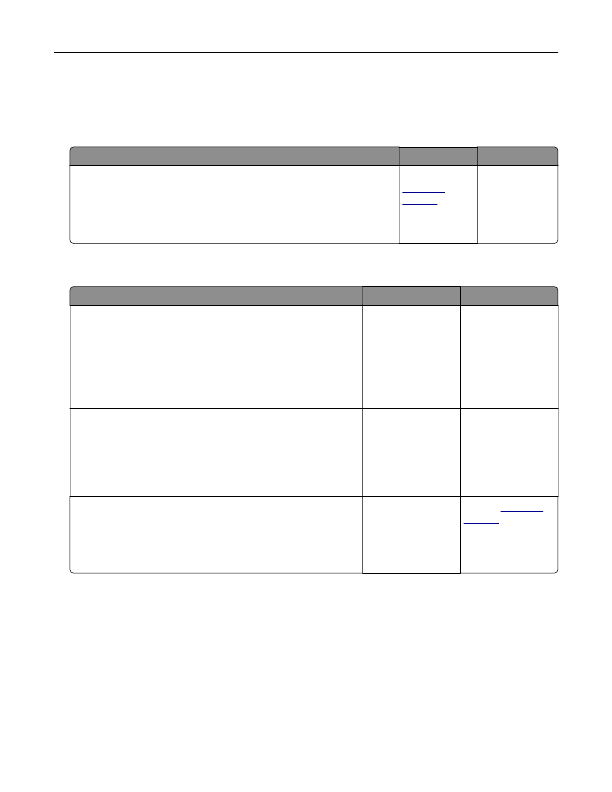
Envelope seals when printing
Action
Yes
No
1
Use envelopes that have been stored in a dry environment.
Note:
Printing on envelopes with high moisture content can seal the
flaps.
2
Resend the print job.
Does the envelope seal when printing?
Contact
.
The problem is
solved.
Collated printing does not work
Action
Yes
No
Step 1
a
From the home screen, touch
Settings
>
>
Layout
>
Collate
.
b
Set Collate to On.
c
Print the document.
Are the pages collated correctly?
The problem is
solved.
Go to step 2.
Step 2
a
From the document that you are trying to print, open the Print
dialog, and then select Collate.
b
Print the document.
Are the pages collated correctly?
The problem is
solved.
Go to step 3.
Step 3
a
Reduce the number of pages to print.
b
Print the document.
Are the pages collated correctly?
The problem is
solved.
Contact
Troubleshooting
90
Detailed Information for Lexmark C6160 Owners Manual
Lists of information found in Lexmark C6160 Owners Manual - Page 90
- 2. Step 2 a From the document that you are trying to print, open the Print dialog, and then select Collate.
- 3. Step 3 a Reduce the number of pages to print.
FAQ (Frequently Asked Questions) for Lexmark C6160 Owners Manual - Page 90
- Paper feed problems Envelope seals when printing Action Yes No 1 Use envelopes that have been stored in a dry environment. Note: Printing on envelopes with high moisture content can seal the flaps. 2 Resend the print job. Does the envelope seal when printing?
- Contact customer support . The problem is solved. Collated printing does not work Action Yes No Step 1 a From the home screen, touch Settings > Print > Layout > Collate . b Set Collate to On. c Print the document. Are the pages collated correctly?
- The problem is solved. Go to step 2. Step 2 a From the document that you are trying to print, open the Print dialog, and then select Collate. b Print the document. Are the pages collated correctly?
- The problem is solved. Go to step 3. Step 3 a Reduce the number of pages to print. b Print the document. Are the pages collated correctly?
Related Documents for Lexmark C6160 Owners Manual
 All trademarks are property of their respective owners. Tightrope
Interactive
All trademarks are property of their respective owners. Tightrope
Interactive