
Print jobs do not print; Step 6; Step 7- Page 96
Lexmark C6160 Owners Manual
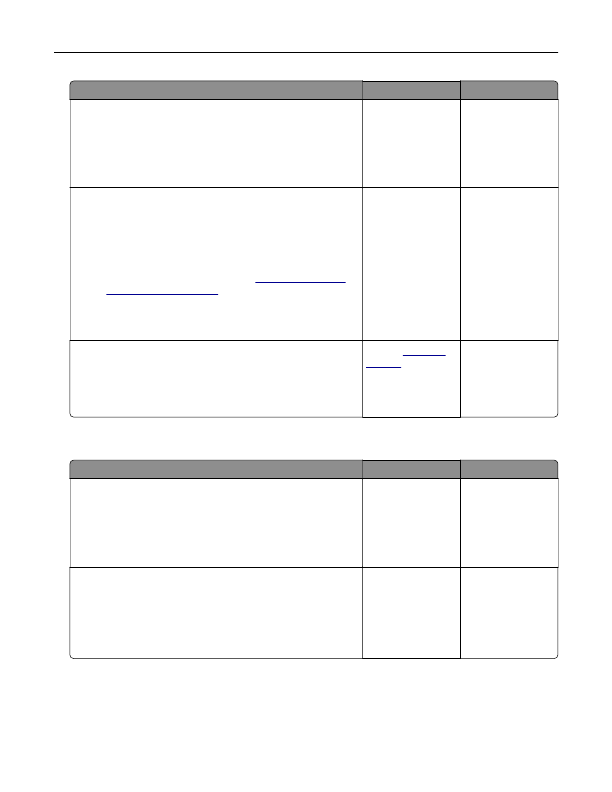
Action
Yes
No
Step 6
a
From the Quality menu on the control panel, set the Print
Resolution to 4800CQ.
b
Print the document.
Is the printer printing slow?
Go to step 7.
The problem is
solved.
Step 7
a
Make sure that the printer is not overheating.
Notes:
•
Allow the printer to cool down after a long print job.
•
Observe the recommended ambient temperature for the
printer. For more information, see
.
b
Print the document.
Is the printer printing slow?
Go to step 8.
The problem is
solved.
Step 8
a
Add more printer memory.
b
Print the document.
Is the printer printing slow?
Contact
.
The problem is
solved.
Print jobs do not print
Action
Yes
No
Step 1
a
From the document you are trying to print, open the Print
dialog, and then check if you have selected the correct printer.
b
Resend the print job.
Is the document printed?
The problem is
solved.
Go to step 2.
Step 2
a
Check if the printer is on.
b
Resolve any error messages that appear on the display.
c
Resend the print job.
Is the document printed?
The problem is
solved.
Go to step 3.
Troubleshooting
96
Detailed Information for Lexmark C6160 Owners Manual
Lists of information found in Lexmark C6160 Owners Manual - Page 96
- 7. The problem is solved.
- 8. The problem is solved.
- 2. Step 2 a Check if the printer is on.
- Allow the printer to cool down after a long print job.
- Observe the recommended ambient temperature for the printer.
FAQ (Frequently Asked Questions) for Lexmark C6160 Owners Manual - Page 96
- Action Yes No Step 6 a From the Quality menu on the control panel, set the Print Resolution to 4800CQ. b Print the document. Is the printer printing slow?
- For more information, see “Selecting a location for the printer” on page 9 . b Print the document. Is the printer printing slow?
- Go to step 8. The problem is solved. Step 8 a Add more printer memory. b Print the document. Is the printer printing slow?
- Contact customer support . The problem is solved. Print jobs do not print Action Yes No Step 1 a From the document you are trying to print, open the Print dialog, and then check if you have selected the correct printer. b Resend the print job. Is the document printed?
- The problem is solved. Go to step 2. Step 2 a Check if the printer is on. b Resolve any error messages that appear on the display. c Resend the print job. Is the document printed?
Related Documents for Lexmark C6160 Owners Manual
 All trademarks are property of their respective owners. Tightrope
Interactive
All trademarks are property of their respective owners. Tightrope
Interactive