
Ordering imaging units; Ordering staple cartridges; Ordering a waste toner bottle- Page 40
Lexmark C6160 Owners Manual
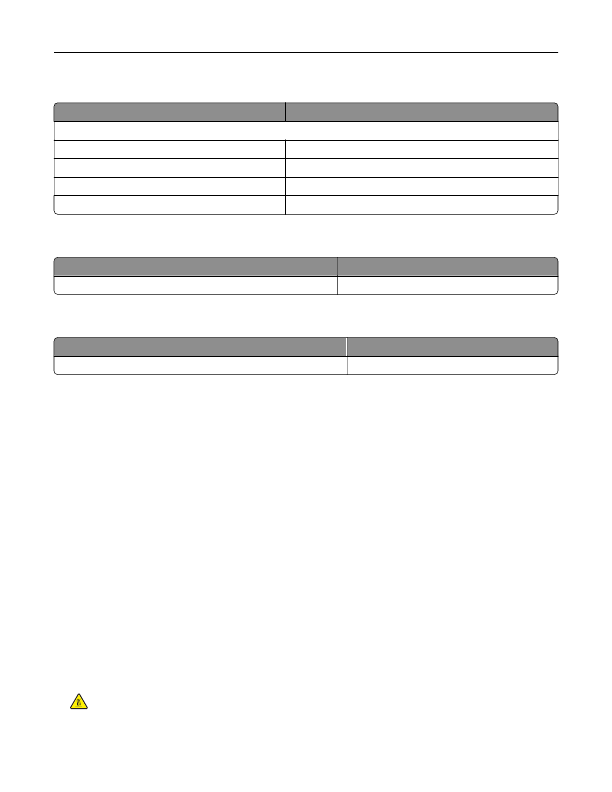
Ordering imaging units
Item
All countries and regions
Return Program imaging units
Black imaging unit
21K3401
Cyan imaging unit
21K3403
Magenta imaging unit
21K3402
Yellow imaging unit
21K3404
Ordering staple cartridges
Item
Part number
Staple cartridges
25A0013
Ordering a waste toner bottle
Item
Part number
Waste toner bottle
72K0W00
Configuring supply notifications
1
Open a web browser, and then type the printer IP address in the address field.
Notes:
•
View the printer IP address on the printer home screen. The IP address appears as four sets of
numbers separated by periods, such as 123.123.123.123.
•
If you are using a proxy server, then temporarily disable it to load the web page correctly.
2
Click
Settings
>
Device
>
Notifications
.
3
From the Supplies menu, click
Custom Supply Notifications
.
4
Select a notification for each supply item.
5
Apply the changes.
Replacing parts and supplies
Replacing a developer unit
1
Open door B.
CAUTION—HOT SURFACE:
The inside of the printer might be hot. To reduce the risk of injury from a
hot component, allow the surface to cool before touching it.
Maintaining the printer
40
Detailed Information for Lexmark C6160 Owners Manual
Lists of information found in Lexmark C6160 Owners Manual - Page 40
- 23.123.
- 23.123.
- View the printer IP address on the printer home screen.
- If you are using a proxy server, then temporarily disable it to load the web page correctly.
Related Documents for Lexmark C6160 Owners Manual
 All trademarks are property of their respective owners. Tightrope
Interactive
All trademarks are property of their respective owners. Tightrope
Interactive